[Major New Feature] Gorgeous New Web Viewer
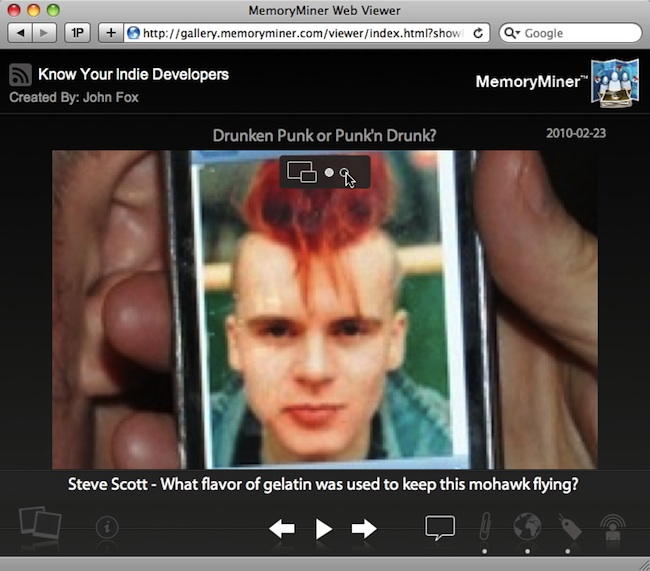
New Web Viewer

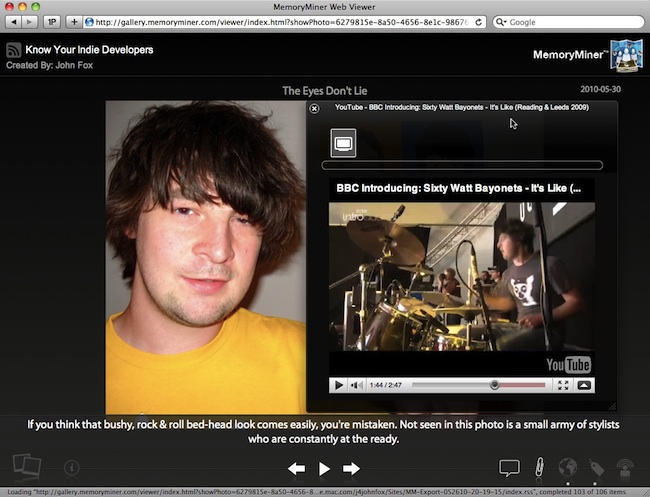
Embedded YouTube Video Playback

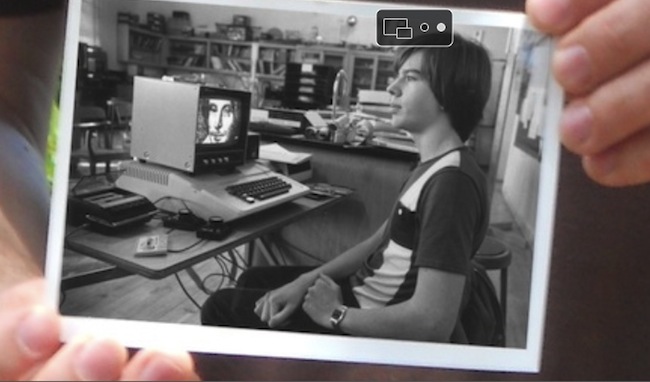
The MemoryMiner Web Viewer has had a complete stylistic and user experience make-over. In modern web browsers (i.e. Safari, Chrome, Firefox) it's now possible to pan & zoom through specific areas of interest in a photo. Use the arrow keys to navigate between the highlighted regions, or between photos.

YouTube videos that are attached to photos are displayed using an embedded viewer.

A graphical link to published MemoryMiner Web Viewers can can be embedded into any web page, or shared using a URL. In either case, you can specify the exact photo which should be first displayed.

Hint: click on the "i" button to see a complete help document which details all the cool features.
[Major New Feature] "Soft Landing" Welcome Screen

MemoryMiner Welcome Panel

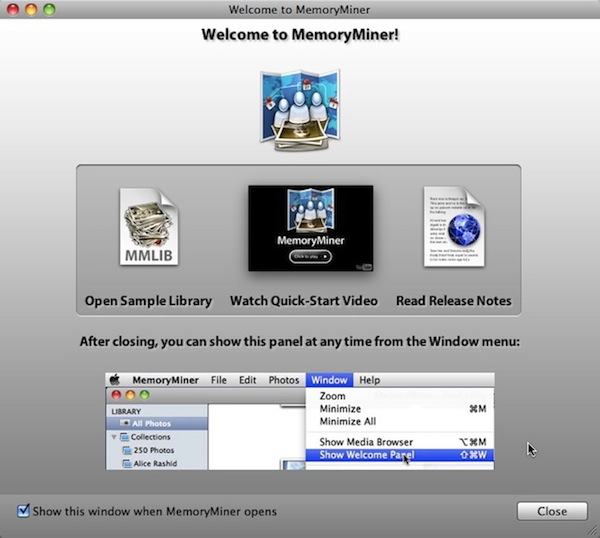
In order to help first-time users become acquainted with the application as quickly as possible, a new "Welcome Panel" has been added. In fact you may be viewing it now. From this panel, you can load a sample library, which gives you a kind of sandbox to play in. You can also view a Quick-Start tutorial video, which is highly recommended for new users. Release notes (what you're reading now) are also displayed and always worth a read.

[Enhancement] Significantly Improved FTP support

New FTP Configuration Options

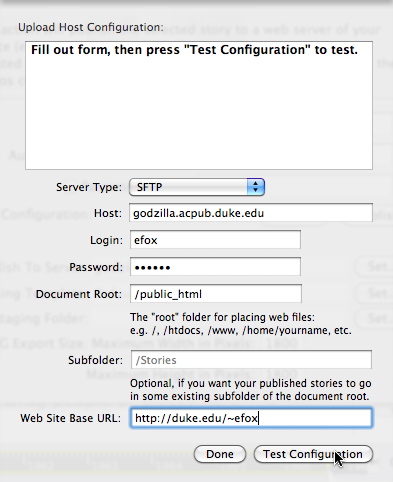
When uploading to web servers using FTP, there are now additional options that make MemoryMiner compatible with more web hosting sites, including those typically found in college networks. Secure FTP is now an option, and you can specify the document root.

[Enhancement] Drag & Drop Photos to People or Places

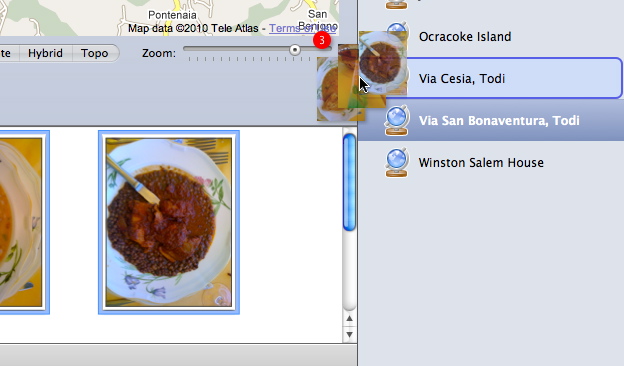
Drag & Drop Photos to Places Table

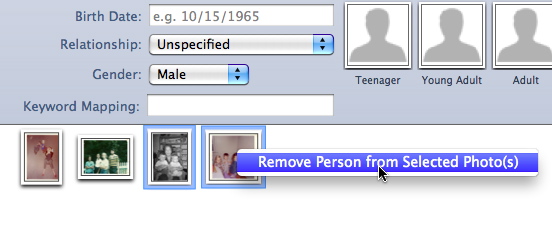
Remove Person from Selected Photo(s) context menu.

You can now drag a selection of one or more photos from any contact sheet view to a Person or Place. This can helpful in many scenarios. For instance, if you'd like to reassign a selection of photos from one place to another, you can drag from the contact sheet found in the Place editor to another place.

Hint: While a photo can be assigned to only one place, it can be assigned to more than one person. You can right- or control-click on a selection of photos in the Person or Place editor's contact sheet view to show a context-menu that lets you remove a person or place from a selection of photos.

[Enhancement] Improved Navigation between Selection Markers

Improved Marker Pan & Zoom Navigation

Pan & Zoom navigation between markers is much nicer. Borrowing a page from iPhone applications, white dots are used to represent each marker on photos that have more than selection markers. You can click on any of the dots to go between the various markers. You can also use the left/right arrow keys to navigate between markers or the up/down keys to zoom in and out of a photo. When there is only one marker, there will be no white dots.

Hint: When Editing a photo, you can click on the full screen tool bar button to do ad-hoc presentations about a series of photo. This has proven effective way in classroom settings to highlight specific areas in a photo or a painting during lectures.

[Enhancement] Drag & Drop Photos to People/Place Contact Sheet

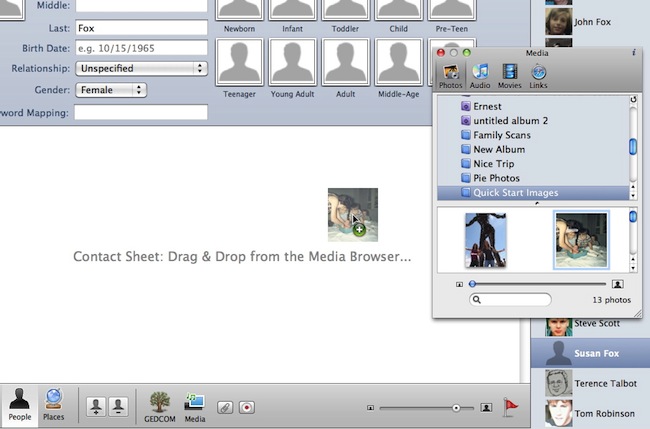
Drag & Drop Photos to Places Table

A Media tool bar button has now been added to the Person and Place editor tool bars. This allows you to drag & drop directly on to the a Person or Place's contact sheet in order to import photos that will in turn be assigned to the given person or place.

Hint: By default the Person Editor shows the Maplines View. Click the toggle button on the right hand side of the Person Editor tool bar to display the contact sheet for the person.

[Enhancement] Show Entire Photo in Person Icon Editor

Person Icon Editor: Show Entire Photo

When editing an icon for a person, it's not possible to show the entire photo in the editor. This can oftentimes help you get a better icon for a person.

[Enhancement] Open Recent Library

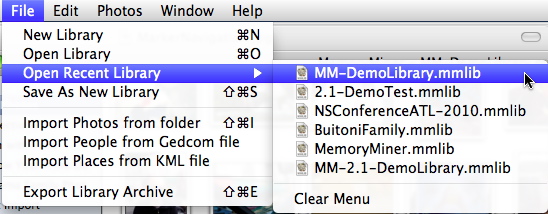
Open Recent Library

MemoryMiner now keeps track of the libraries you've recently opened. Quickly switching between libraries is now a snap. This is particularly helpful if you've loaded the Sample Library and want to quickly refer back to it.

[Enhancement] Append/Replace Items Option in Flickr Upload

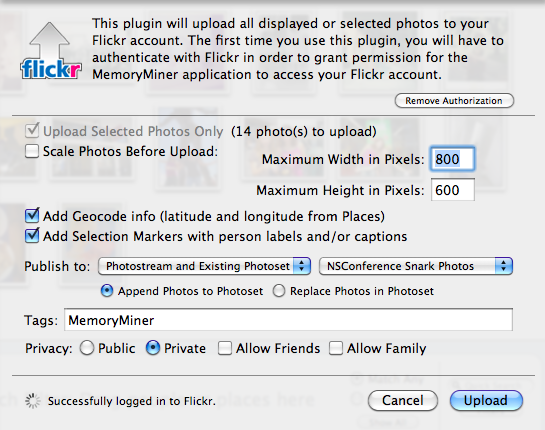
Apend/Replace Items Option in Flickr Upload

When uploading from MemoryMiner to a specific Flickr Photoset, it is now possible to explicitly indicate whether the photos should be appended to (the default) or replace the existing photos in the photoset.

[Bug Fixes] Numerous bug fixes, including:

  • GPS data (i.e. latitude and longitude) applied in iPhoto (as opposed to being embedded by a digital camera) is now read from the iPhoto library on import. This is useful in conjunction with the "Perform reverse geocoding from GPS data" preference.
  • Non-contiguous selections in contact sheet views using the shift and control keys had been broken in a prior release. It now works properly.
  • Using the left and right arrow keys to navigate between characters in a text field now works as it should: it had been being interpreted as a keyboard short cut for moving between photos.
  • When modifying the photo export size in the export/publishing configuration panel, the changes take effect immediately. The default export size is now 2000 x 2000 pixels, but uses a higher compression rate that keeps file sizes reasonable while preserving visual quality.
  • 2.11: Fix problem with Media Browser's Audio tab not loading.
  • 2.11: Fix problem with Flickr Upload plugin whereby the metadata from “private" photos was not being read before subsequent update. This also fixes a similar problem where photos were needlessly being uploaded a second time.